


Persona
Clients, program office users and system administrators
How to steps
Information in this article reflects a standard Enterprise configuration. Your Enterprise platform is based on your organization’s configuration. Settings and/or data visibility rules may vary slightly from what is described.
As a program office user, you may be responsible for onboarding a candidate to an assignment. When you onboard a candidate, you can also initiate provisioning network access, devices and any required security ID.
To accomplish your task, complete these steps from your Enterprise dashboard.
-
From the My To Do List, select the You have Candidate On/Offboarding Tasks to complete link. The Review Alerts dialog displays.
-
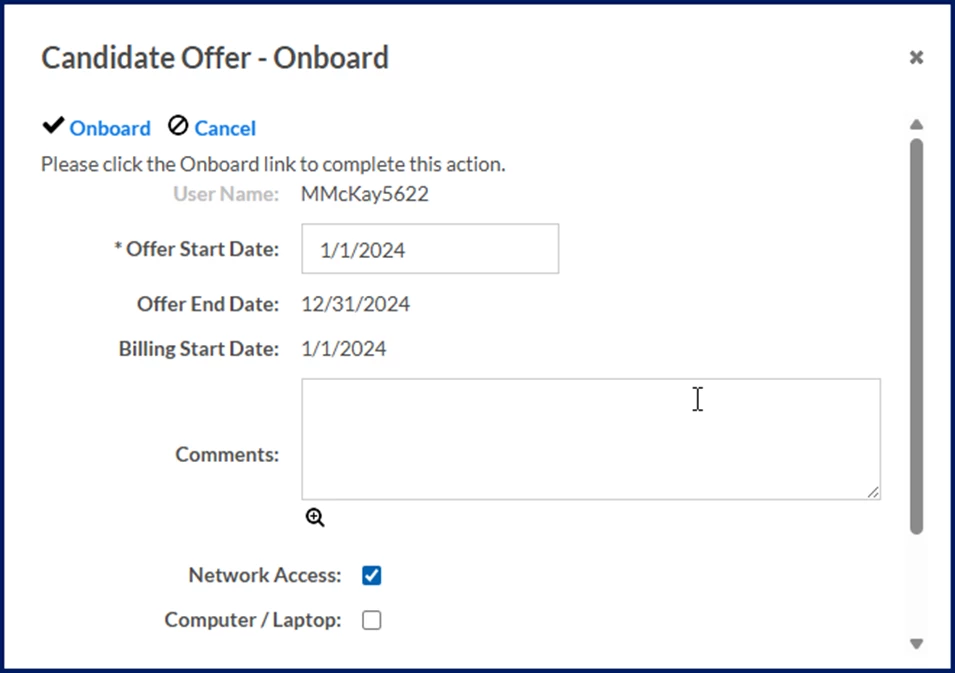
Locate the assignment to which you want to onboard a candidate. Next, expand the Action menu and then select Onboard. A Candidate Offer - Onboard dialog displays.
-
In the Offer Star Date field, enter the date you expect the assignment to start.
-
Complete any additional fields in the Candidate Offer - Onboard dialog as needed.
-
Select Onboard.